
Some Pretty Cool Git Tools To Save Your Sanity And Your Kids
Splitting PRs is a pain, especially when refactoring is baked into the change. Here’s how I make it bearable using git revise and some additional git tools that I built.
git revise
You build complex stuff in a complex codebase. It goes like: you start working on the feature, and encounter a patch of code that begs to be refactored. It’s not necessarily horrendous, won’t break, but it could be cleaner and you can’t resist. You just start renaming things, moving them around, making things so that everyone else is confused but you can achieve happiness.
On one such occasion, my colleagues complained about the resulting 50 files, 2500 lines in that beautiful, beautiful PR. Ok, I admit, there might have been a couple things here and there that weren’t completely related with the rest. Yes, maybe up to a solid third of the PR. Ok, yes, making it impossible to understand. Anyhow, they threatened to never review anything I’d write ever again, complained to my manager, twisted my arm. Then I opened my C4 cabinet, and they kidnapped my kid. After sleeping on it and conceding that they might have a point, apologizing profusely, and exchanging our now defunct relatives, we compromised on having someone split the PR. That person being me, of course.
And there’s nothing I love more than to split large PRs, especially when things are somewhat co-dependant and there’s no direct way to split the code. Ah, smell of “it works but I’m now gonna break it until it doesn’t” in the morning, I yearn for you! After considering doing a git reset and copy-pasting stuff around, I searched for a better way and found that cool tool called git revise 1. It’s somewhat of a wrapper on top of git that allows you to do a few things on the commits in your history, from the comfort of your own workspace. Namely:
- Cut a commit: select code from a commit that you want in another commit, with the same UX as
git add --patch - Re-order and re-arrange (e.g. squash or drop stuff) the commit history interactively, with the same interface that you use when rebasing.
- Revise a commit from your workspace: applying the changes that you staged to a commit in the history, and then rewriting history to pretend it had always been there.
I didn’t know I had it in me to fall in love again, but here I am, fully captivated by that new tool written 7 years ago. This is quite fantastic in a few ways:
- when after an afternoon of sweaty labour you realize that you screwed up2 again, and ended-up with a PR that’s way too large, you can use
cutandinteractivemode to rearrange everything into several commits, and pretend you did it right in the first place. C4 cabinet closed! - more ways to rewrite the git history means more risk means more fun!
- you can stack commits and prevent that from happening in the first place: the boy scout rule (aka “cleaning up as you go”) makes PR larger with unrelated stuff. That makes your colleague’s lives harder and your children’s lives dangerous. You roam in the codebase, see something that deserves more love, but you don’t want to pollute the job of the poor soul who will review your code. Branching out means conflicts to resolve later.
git revisegives you a better alternative: you just fix it directly in your branch, and add to a cleanup commit lower down in your stack, then open a PR on that commit, and voilà:
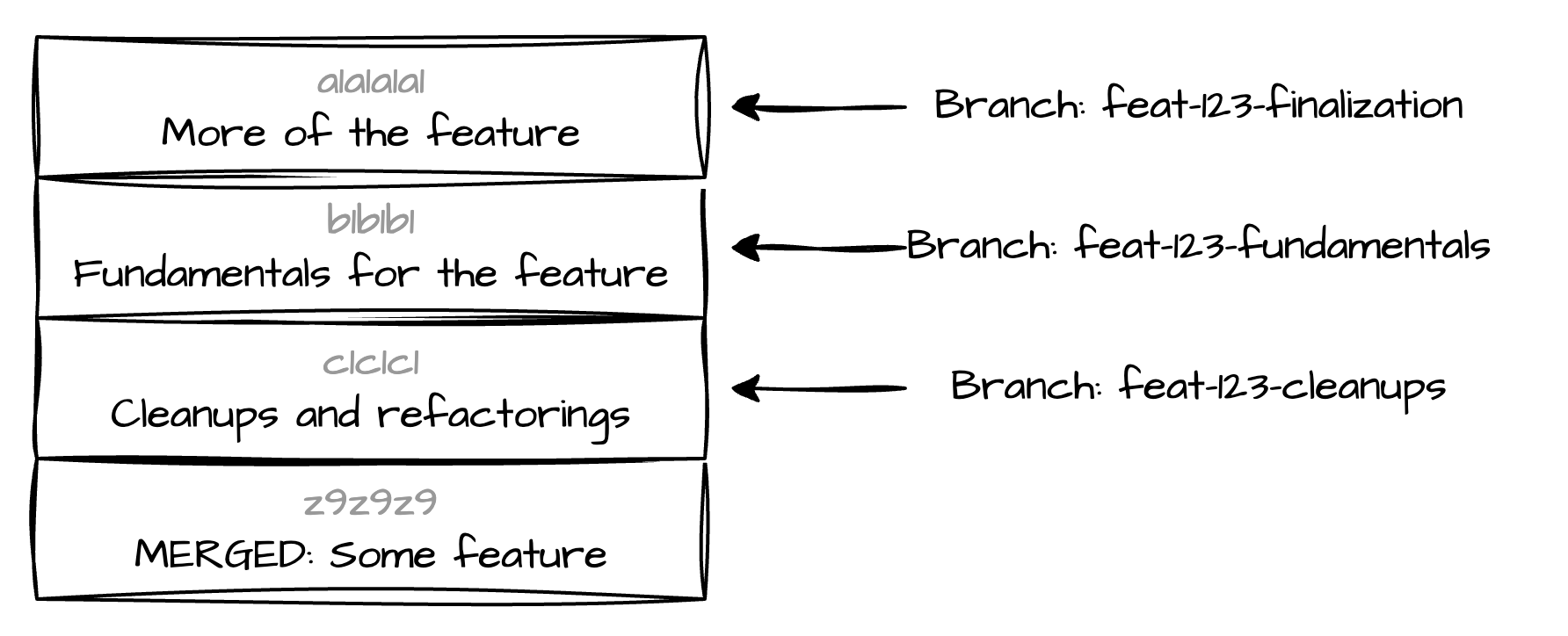
The git revise command gives you the comfort to amend a commit deeper in your history. With that you can then just create distinct, cumulative PRs. Make a smaller one for people to start reviewing, while continuing to progress without having to handle conflicts. For anything you want to push to one of the other commits, you just stage the changes, and go git revise HEAD~1 or HEAD~2 (or HEAD~3, or HEAD~4, or …). Push that to your centralized, nightmarish review system, and keep on trucking.
Here’s how I go about it: first I create a commit for refactoring and cleanups, to which I push everything unrelated. I have a single commit on which I build my feature, which I update using git commit --amend --no-edit. It usually takes some time to get my first feature PR merged, and I want to get started on the rest, so I create a second commit (and PR) on top of it. Any review comments that need to be integrated, I push to the relevant commit, update the branch and push. And so on.
I know you die to see some CLI output. So, for example, we have these three commits:
∂ git log --oneline
cd42fba (HEAD -> main) More of the feature
6b638f2 Fundamentals for the feature
e5897c7 Cleanups and refactorings
This is what the file currently looks like
∂ cat toto.txt
Cleanups and refactorings
If we alter the file and apply the revise to the Cleanups and refactorings commit. History gets rewritten (git revise shows commits in the opposite order to git log):
∂ echo "addition to the Cleanups and refactorings" >> toto.txt \
  && git add toto.txt

∂ git revise HEAD~2
Applying staged changes to 'HEAD~2'

7782c25c2969 Cleanups and refactorings
9882cebb6c26 Fundamentals for the feature
ab91afbdc9e7 More of the feature
Updating refs/heads/main (cd42fbaeab4 => ab91afbdc9e)
And the commit gets amended:
∂ git show --patch HEAD~2
commit 7782c25c2969e919ed14ed3f99d72bfeb5ea1510

    Cleanups and refactorings

diff --git a/toto.txt b/toto.txt
new file mode 100644
index 0000000..5865a92
--- /dev/null
+++ b/toto.txt
@@ -0,0 +1,2 @@
+Cleanups and refactorings
+addition to the Cleanups and refactorings
That way, you can just keep the top-most branch checked-out (feat-123-finalization), do all your work there, and update the other commits from there. Create one PR per commit, and have them reviewed in succession3.
Some more goodness
But that’s not all. I became jealous of that git subcommand. I needed MORE. There are other tricks that I have been doing, and they require me to type 2, or even 3 commands. I can’t have that, I’m too used to comfort and the illusion of control now.
So I started writing my own subcommands, and because I’m generous, I’m giving them to you. Because that’s what you want: poorly maintained and barely tested code that does exactly what I need it to (and probably close-to but not-really what you need), with no warranty, to modify your git history.
It’s currently made of 5 commands:
git backup
git backup makes a backup of your current branch (it basically just creates a new branch with today’s date that points to the current branch’s current HEAD), because I’m playing with the git history, and I have low confidence in my abilities to do so. Doing some backups sounds like a sane thing to do.
Consider that to be the paper-thin shield you’ll wear while playing with explosives.
git reparent - better than git rebase
Edit: as pointed out by someone on git rebase, this is similar to git rebase –onto. I think I’ll keep git reparent around, as I find the interface to rebase –onto a bit confusing, but might be a bit different.
git reparent re-applies commits on top of a new parent. You’ve already seen that if you work on a repository and the main branch keeps diverging, or when you merge the first PR in cumulative updates like about. You git rebase and suddenly get 120 conflicts on files you didn’t know existed in the repository. That’s how it makes me feel:

If you can’t be bothered to spend 5 hours trying to resolve virtual conflicts, git reparent might save you.
What usually explains these case is that somehow history got rewritten while you had your back turned. Git hashes are different, even if the content didn’t necessarily change on what you care about, and so using the default strategy, git is trying to apply all these changes from the first common ancestor onto your version of the truth, which also contains the same changes, but maybe in an earlier version.
git reparent lets you just pick your commits and move them onto the new main. This is an example of git reparent origin/main -n 3:
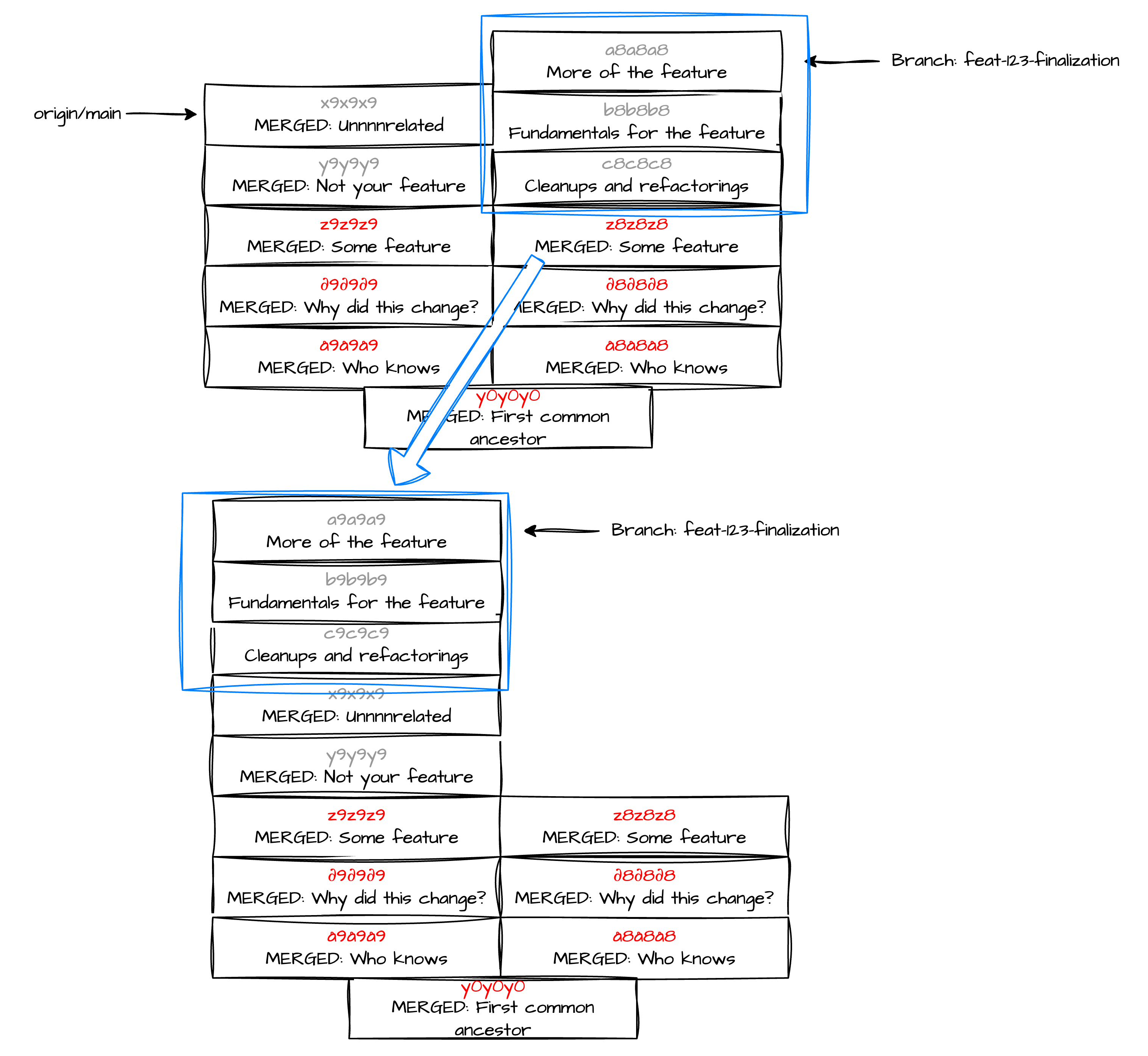 It works by checking out the main branch in headless mode, and cherry-picking your changes in order. You might have to resolve some conflicts, but at least that should be on stuff that you know (and care) about. Use
 git reparent --continue to continue once you fixed the conflicts. There’s probably a simpler way to fix these, but why use a scalpel and learn how tools work, when you have a bazooka?
Joke aside: that reparenting strategy makes more sense to me than applying a text conflict resolution algorithm through either selecting the right strategy in rebase or applying a merge. There are no conflicts to be resolved, they’re all incidental to having a stale history. So just discarding the conflicts by moving the actual changes you made makes more sense in my opinion.
git split
Sometimes you commit stuff, but you didn’t mean to. You don’t want to lose those changes, you want them in another commit, or another branch. git split allows you to selectively split your last commit. Start with a clean workspace, and delete everything you want to move from the last commit. Stage these deletes, don’t commit and instead git split. It will amend your last commit and effectively remove what you deleted from it, but then revert the deletions, and stage (or commit) everything back. Combine with a little git revise to move the changes where you want them to be, and you should be set.
Example: I created that commit. But whooopsy, I included some code that I want in another commit. WADOHAIDO?
∂ git show HEAD
commit b6a7b9df0a8128118cbd3bac5a60472263679977 (HEAD)

	   Commit 1

diff --git a/file1.txt b/file1.txt
new file mode 100644
index 0000000..0a157df
--- /dev/null
+++ b/file1.txt
@@ -0,0 +1,3 @@
+Line 1
+This is a line in commit 1 that should be in commit 2.
+Line 2
Jump on a text editor and delete that line:
∂ sed -i '2d' file1.txt && git diff
diff --git a/file1.txt b/file1.txt
index 0a157df..c82de6a 100644
--- a/file1.txt
+++ b/file1.txt
@@ -1,3 +1,2 @@
 Line 1
-This is a line in commit 1 that should be in commit 2.
 Line 2
Stage that deleted line, and run git split (if you specify a message, then it creates a commit for you ; else it just stages the change):
∂ git add -A && git split --message "That line is now in commit 2"
📝 Git Split Process Starting...
▶️ Creating diff file: .git/git-split.diff
▶️ Amending previous commit...
✅ Commit amended successfully
▶️ Applying reverse diff to restore working directory...
✅ Working directory restored
▶️ Staging all changes...
✅ All changes staged
▶️ Creating new commit...
✅ New commit created
🎉 Git split process completed successfully!

Split Summary:
  Previous commit: Amended
  Working dir:     Restored
  Changes:         Staged
  New commit:      Created with message
Tada, that code is now in a new commit!
∂ git show HEAD && git show HEAD~1
commit 0d0d457c387e546cc105ece265648f7dff499576 (HEAD)

    That line is now in commit 2

diff --git a/file1.txt b/file1.txt
index c82de6a..0a157df 100644
--- a/file1.txt
+++ b/file1.txt
@@ -1,2 +1,3 @@
 Line 1
+This is a line in commit 1 that should be in commit 2.
 Line 2
commit b21ae62fbb7a5f065b8ada911e976e56915e0162

    Commit 1

diff --git a/file1.txt b/file1.txt
new file mode 100644
index 0000000..c82de6a
--- /dev/null
+++ b/file1.txt
@@ -0,0 +1,2 @@
+Line 1
+Line 2
It sounds weird to delete code you want to keep, but it’s quite useful when you want to split commits with a finer blade than what git revise --cut allows you to.
git move-branch
git move-branch changes the commit to where a branch is pointing. This is very useful if you work on the cumulative changes pattern that I showed above. I want to create a branch per commit. When git revise rewrites history, it is nice enough to move the current branch to the new commit. But if you have branches pointing to other commits in the history like I do, they’re left pointing to the old version of the commit tree.

git move-branch allows you to move other branches to point to the updated commits and force-push your way to deleting production inadvertently because no-one ever protects main and no-one refreshes it on their local either. I’ll probably end up modifying git revise so that it updates them for me.
git bookmark
And finally, git bookmark allows you to create… bookmarks. They’re similar to checkouts, except that they’re relative. So a git bookmark create fixes HEAD~2 will always point to HEAD~2. You can make it point to any kind of refs, be it relative refs, branches, tags, or commits (though there’s little point in that last one). Why? Few reasons.
-
I always get confused per whether
HEAD~1is my previous commit or the one before. With bookmarks I can create myself reminders, and use them like this:git revise $(git bookmark show fixes). -
Quick switching between branches: you might be in an organization that enforces branch names like
dev/features/users/this_is_your_alias/12345/feature_name/the_name_of_the_CEO--copyright-2021. In this case, switching between branches sucks. You can gogit bookmark create featand boom you can just go back to your branch withgit bookmark checkout feat. You can even alternate quickly between branches usinggit bookmark -, which just checks out you last bookmark, orgit bookmark -iwhich lets you pick which bookmark from a list. -
Going back to using cumulative changes, if you have 1 branch per commit (so that you can maintain one PR per branch), changing the history will make you branches stale. Bookmarking can help with that. If you set a relative bookmark with
git bookmark create fixes/some_fixes HEAD~1, it will update you branchfixes/some_fixesevery time you rungit bookmark sync fixes/some_fixesto refer to you next-to-last commit.
This is quite an imperfect system, because relative bookmarks (eg HEAD~1) will become stale as soon as you create a new commit, so be careful. But if you maintain a stable commit stack and use git amend, git revise and so on, then it might be useful.
All these commands contain a --help subcommand that displays their usage, they have more tweaks. They’re available here, some assembly required.
One last technical note
I want to address the elephant in the room, because this blog is pretending to be part technical after all. It’s built in go4, and it’s a (mostly) a wrapper to git. The choice doesn’t make sense to me either, I’m still partially ashamed. Let me explain:
It’s a wrapper, so a shell script would have worked? Well, no. I work on both Windows and Unix. I want something portable. So Powershell would have been the best choice there. I’d prefer being caught naked in the 3rd floor bathroom like I am every Tuesday at 3pm, than being caught using Powershell. More to the point: git really wants something that either doesn’t have an extension, or that extension be .exe for it to be recognized → it needs to be compiles to some degree. Go it is.
But then, I’m using go, some of these commands should manipulate the git tree directly for efficiency. git backup is frankly quite slow for what it does, and it would take copying a 10 characters text file to be functionally identical. And there my justification is that I’m a poltron. I don’t want to touch git’s file system because I don’t fully understand it yet, consequences are too high, and it scares me. But maybe one day?
I hope some of this is useful to someone. For all the disclaiming I’ve done, I think that as long as you use the backup feature you should be fine. I almost cried when I found git revise, and using all these cheat-code commands bring me a little joy every day.
Notes
-
Wherever you are, Nika Layzell - author of git revise -, if I see you you’re in for a hug. ↩
-
This does not constitute admission of guilt. ↩
-
Practically speaking, I usually work with only two commits: one for whatever is in review, and one for what I’m building on top of it. ↩
-
I hope you appreciate that this detail wasn’t disclosed in the title. ↩